Access via Online Services
Do you need help using the NHS App?

Our Digital Café is held at Bicester Health Centre on the first Friday of every month. You can simply turn up, no appointment is needed.
Our team can help you get started with the NHS App, understand how to access your health information and guide you through the process of requesting historical access.
For further help, visit the official NHS App help pages.

At Bicester Health Centre, we want to help you access your health information safely and conveniently.

You can use the NHS App to view parts of your GP health record, including your medicines, allergies, test results, health conditions and information recorded by your GP practice. 


https://itunes.apple.com/us/app/nhs-app/id1388411277?ls=1&mt=8


https://play.google.com/store/apps/details?id=com.nhs.online.nhsonline


What can I do with the NHS App?

What you can do with the NHS App.


With full access you can:

  • order repeat prescriptions
  • book and manage some appointments e.g. for blood tests and 'flu vaccinations.
  • view your GP health record to see information like your allergies and medicines, test results, hospital letters.
    Patients transferring to the practice may not have full historic data.
  • manage your organ donation decision.
  • find out what your NHS number is.
  • use NHS 111 online to answer questions and get instant advice or medical help near you.

Before proving who you are, you can use the NHS App to:

  • search trusted NHS information and advice on hundreds of conditions and treatments.
  • find NHS services near you.


What do I need to get started with the NHS App?
To get started, download the NHS App to your smartphone or tablet, or access it online.
 
 
You will need a login and may need to verify your identity to access your health information.You need to have an email address, a phone number and you need to prove who you are. If you have not proven who you are, in the NHS App you'll see a message asking you to prove your identity to get full access. Your GP surgery controls the level of detail you will see in your health record. 

How to prove who you are:

You can prove who you are using photo ID such as a Passport, Driving Licence or European National Identity Card.

  1. Take a photo of your ID
  2. record your face using your device
  3. enter your NHS number if you know it

This is a quick and safe method which provides instant access once completed.

If you do not have photo ID you can use the 3 registration details for online services, avaialble from the reception team:

  • Linkage Key (could be called Passphrase) 
  • ODS Code (Organisation or Practice ID)
  • Account ID

A linkage key will be emailed to you, but this may take 2 - 3 days to process and send.

Finding your test results on the NHS App.

Finding your TEST RESULTS on the NHS App.

Once logged into the App, select "GP Health Record"
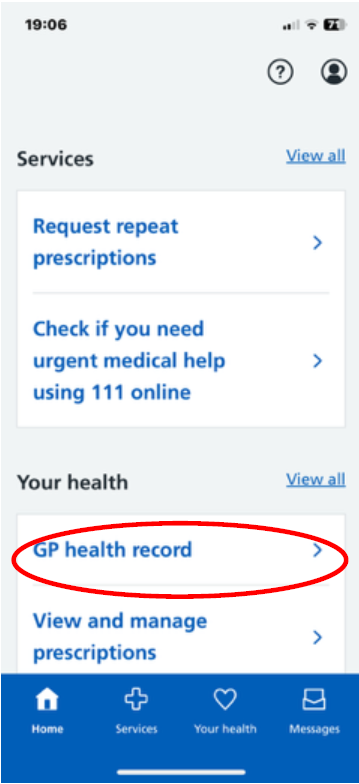
GP Health Record

Click on the “Test Results” item on the “Your GP health Record” menu list. Your results will be displayed with the most recent at the top. If you cannot  see your result, check back in a few days.
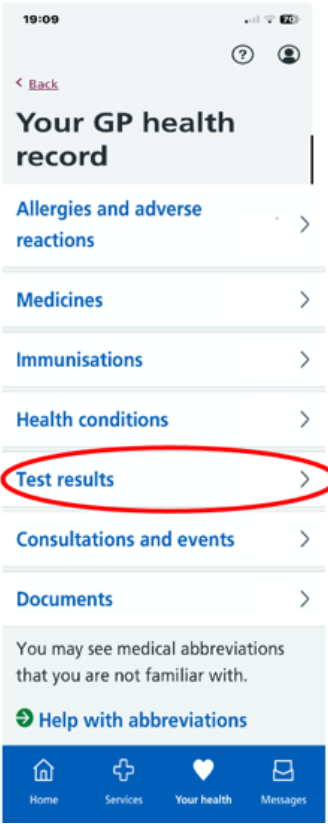
Test Results

Ordering your Prescription

Ordering your Prescription

Click on the first item on the home tab “Request repeat prescriptions. The next page will show any items on your GP record available for request. Click in the box(es) of items required. NB The Notes to surgery may not be seen. Contact Bicester Health Centre if Urgent but please remember prescriptions cannot be ordered in a telephone call.
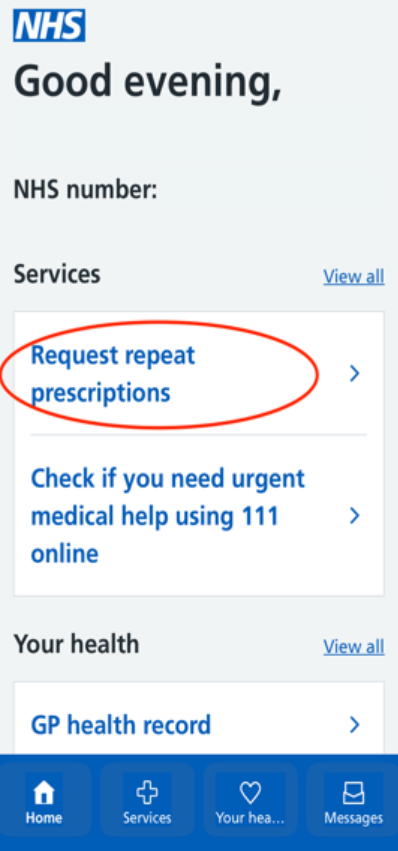
Order your prescription

When you have a test through the hospital

When you have a test through the hospital

Find out how long it will take to get the results. After this time, results will usually be communicated to you directly from the hospital (your GP should be copied in). If you cannot see the results on your NHS App (including in the documents section) this means your GP also will not be able to see them. If you cannot see your hospital result well after the time expected, please contact the hospital clinic directly.

DO NOT LET TEST RESULTS GO MISSING. FOLLOW UP WITH THE SURGERY OR THE HOSPITAL DEPARTMENT WHO GAVE YOU THE TEST.

Contacting the GP Surgery on the NHS App using eConsult

Contacting the GP Surgery on the NHS App using eConsult

Once logged into the App, select “Services” in the blue band at the bottom of the screen. Then click in the “Contact your GP about a health problem” box. This will open the eConsult page of the app.
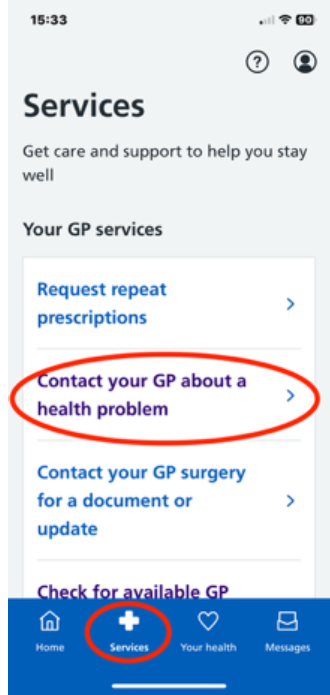
Contacting the |GP Surgery

Using the NHS App to make an appointment

Using the NHS App to make an appointment.

Only appointments for Baby Clinic, Blood tests or Cervical smear tests can be made online. All other appointments must be made via eConsult (above).
Select “Services” in the blue band at the bottom of the screen.
Click in the “Check for Available GP Appointments” box. You cannot book a GP appointment with this tab, only those listed above. On the next screen, click on “Select Type” and use the drop-down menu. Scroll down for available dates. Click on the date of your choice, then select the time. To change the day, click on the (yellow) date bar and search again.
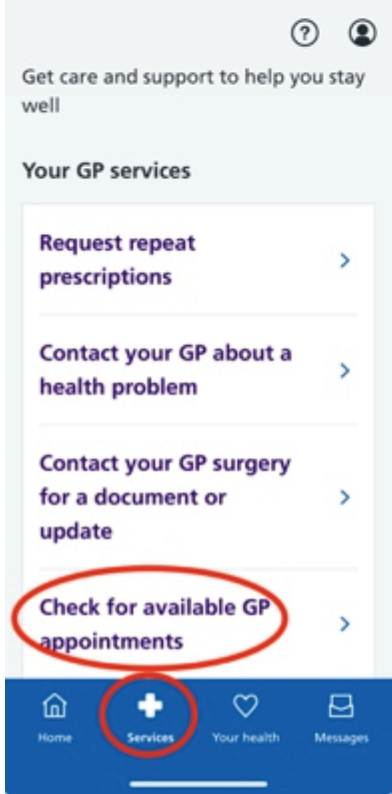
Using the NHS App to make an appointment

Proxy Access for Children Under 12
Proxy access allows you to use the NHS App to help manage another person's healthcare. This may be useful if you are a parent, family member or carer supporting someone with their health needs.
Depending on the level of access agreed, you may be able to:
  • Book appointments on their behalf.
  • Request repeat prescriptions.
  • View some or all of their GP health record.
How do I request proxy access?
 
 
Our team will review the request and let you know if any further information is needed. Proxy access will only be set up once the appropriate checks have been completed.
Please note: Proxy access is different from sharing NHS login details. For security and confidentiality reasons, you should use the formal proxy access process rather than sharing passwords.
Requesting Historical Data
If you would like access to older entries in your GP health record through the NHS App, please follow these steps:
  1. Complete our online form to request historical NHS App access.
  2. Provide the details requested so that we can identify your record and understand your request.
  3. Our team will review your request and consider whether historical access can be granted.
Please note that historical access is not automatic. Requests are reviewed individually, and some information may need to be excluded where appropriate for confidentiality, safeguarding or other legal reasons.
Allow time for your request to be reviewed and processed. We will contact you if we need any further information.
 

Bicester PPG

This information has been prepared by the Bicester Health Centre Patient Participation Group (PPG), and images and content are to the best of our knowledge, correct at the time of preparation. If you would like to join the PPG, please sign up on the PPG page.

Download this page as a leaflet

Page last reviewed: 22 October 2026
Page created: 21 December 2023